
The Network module enables organisations using Dronecloud to form a connection with other Dronecloud users.
It provides the ability for an organisation to sub-contract operations to a third party or external drone company. Using the Network module allows large organisations to create a “Network” of drone operators.
Once a connection between a Client and Operator has been made, the Operator can create drone flight operations and link it to the Client, giving them full visibility of the operational planning.
Definitions
Client
A Client is an organisation that sets up a Network of drone operators (sub-contractors). A good example of a Client might be a large infrastructure owner who sub-contract their operations to external drone companies.
Operator
An Operator is a drone organisation that carries out drone operations on behalf of the Client. For example, “Joe Smith Drone Company” carries out drone operations for a National Infrastructure owner (the Client).
Network for Clients
Enterprise users can create network links to other organisations through the Network tab in Settings.
If you cannot see the Network tab then contact us to enable the functionality.
Follow the steps below to set up a network link:
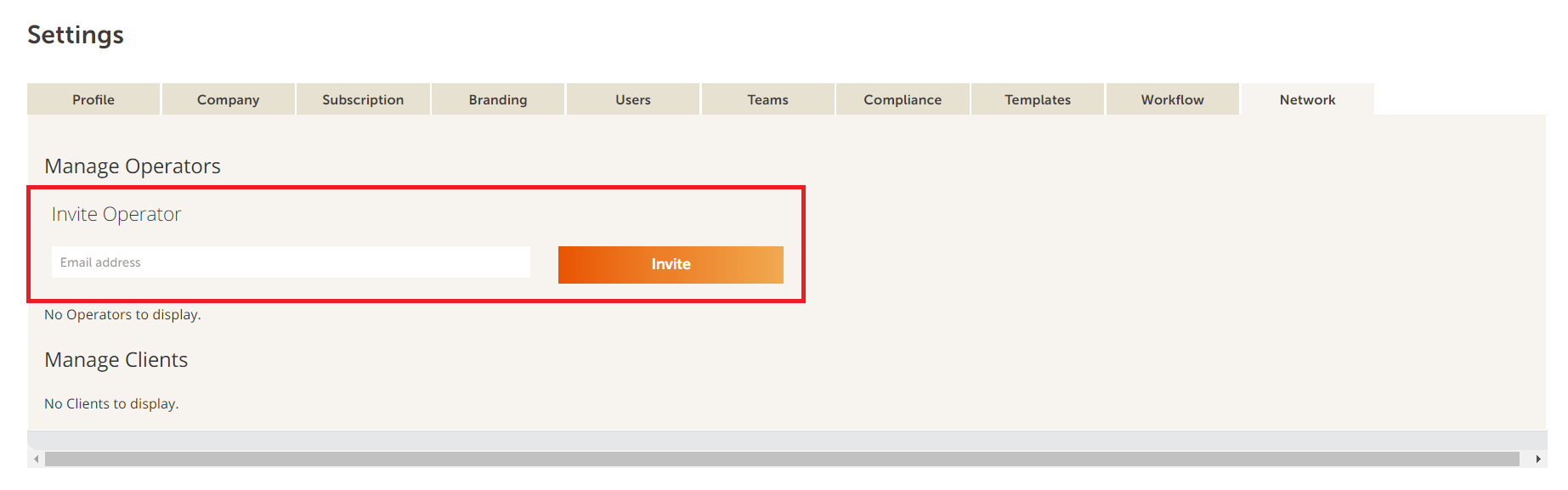
a) Invite an Operator
Enter the email address of any user in the organisation you wish to link to. An email invitation will be sent to that organisation's administrators to approve.
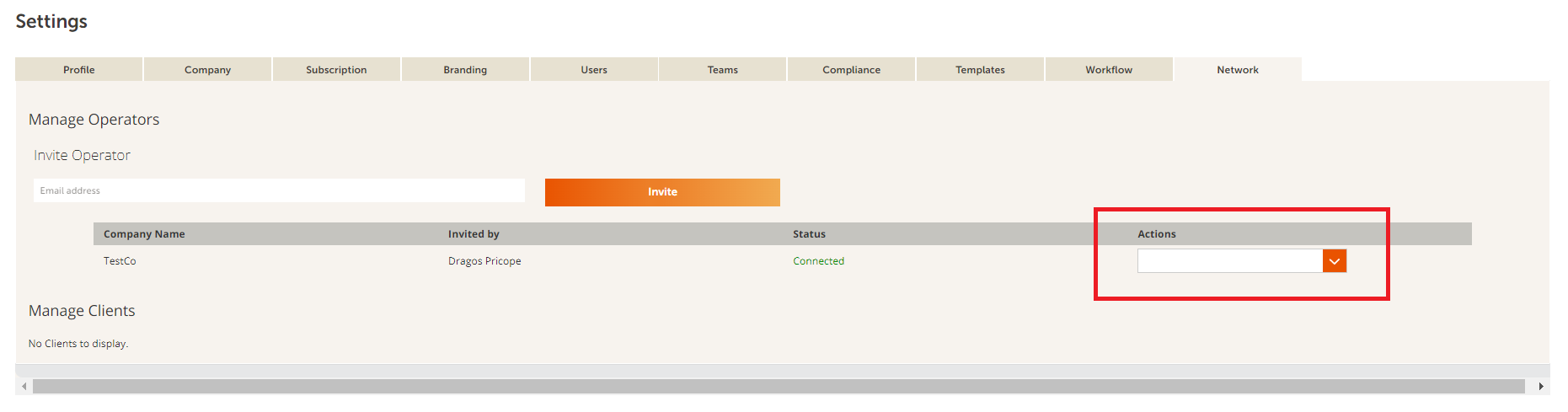
Operators can be removed and contacted using the action button in the Manage Operators table.
b) View Operator operations
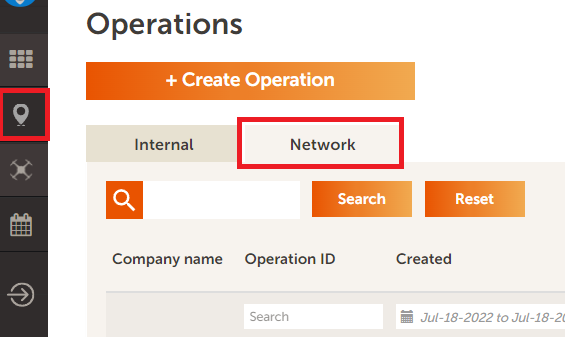
Operations that are marked by the Operators as a job for you as a Client will appear in your "Frameworks Operations" table. This can be accessed on the Network tab in the operations table.
As an enterprise subscriber you can add multiple Operators to your Network, and also be a part of other organisation's Networks if desired.
Network for Operators
To join a Client's Network, an administrator user in the Client's organisation will need to invite your organisation to their network following the steps above. Once invited, the Operator organisation administrators will receive an email notification, or can accept the invitation by going directly to the Network tab in settings.
In the Manage Clients table, you can accept, decline and contact a client.

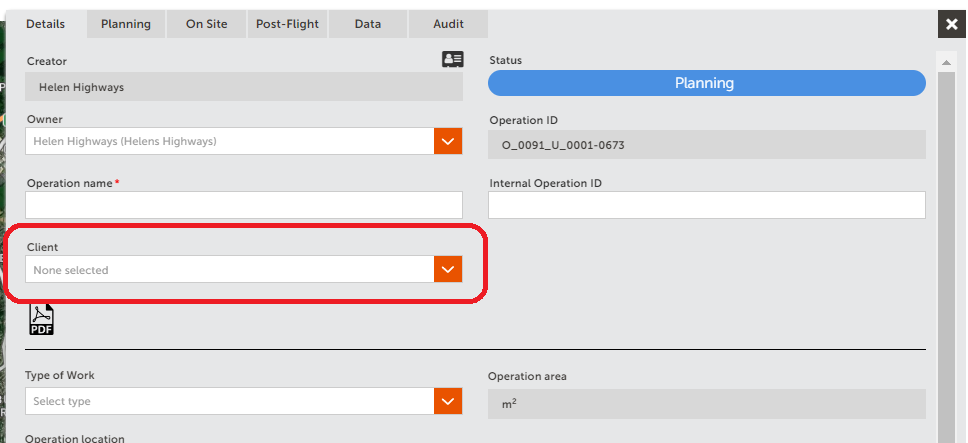
Once a link has been established, operations can be linked to the Client by selecting their organisation name from the dropdown menu. If a Client is selected, then once the operation is submitted it will be visible in the Client's operations table as well as your own organisation's operations table.
Network Subscription Levels
You can join one Client's network if you are on our Starter plan, and up to five networks on our Growth plans. To create networks you must be an Enterprise customer. See the Subscription tab in settings or contact us for more information.
Comments
0 comments
Article is closed for comments.